User Manual
Navigate the app
The application can be used with a Web browser with a smartphone, a Tablet or a computer.
The Feed access application is made up of 2 main screens, “Ingredients” (1) and “Formulas” (2). These 2 screens are accessible via the main menu located on the right.
At the top right a menu gives access to the screens “Help” (3), "My account” (4) and “Messaging” (5). Log out using the [Logout] button (6).
Even if your Internet connection is unstable, the application keep on working normally.
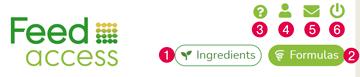
Computer version
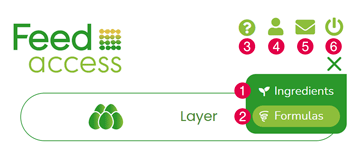
Mobile version
Screen: “Ingredients”
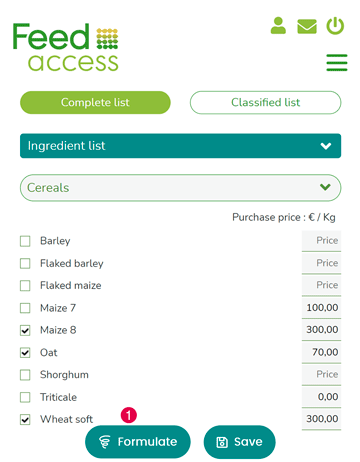
This screen displays a list of ingredients, arranged alphabetically. It allows you to choose and manage your ingredients.
Check the ingredients that will appear in your “Formulas” screen and indicate their purchase price.
Screen details:
- Button (1) [Complete list] displays the list of ingredients, classified in alphabetical order.
- Button (2) [Classified list] displays a list B.
- The drop-down menu (3) [My ingredient lists] allows you to modify your saved ingredient lists and modify them.
- The drop-down menu (4) [All ingredients] allows you to search for raw materials by characteristics.
- The check boxes (5) allow you to select the ingredients.
- Fields (6) [Price] allow you to indicate the purchase prices of the ingredients.
- The buttons (7) [?] allow you to obtain additional information on the ingredients.
- Button (8) [Formulate] gives access to formulas.
- Button (9) [Save] allows you to save ingredient lists
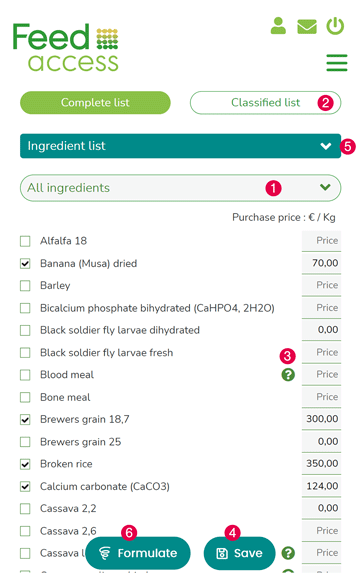
Search for raw materials by characteristics
By clicking on the [All Ingredients] drop-down menu (1), you display a list of characteristics of ingredients.
By clicking on a characteristic, the list of corresponding ingredients is displayed.
The characteristics are classified in alphabetical order which allows you to find an ingredient more easily.
Check your ingredients and indicate the purchase price.
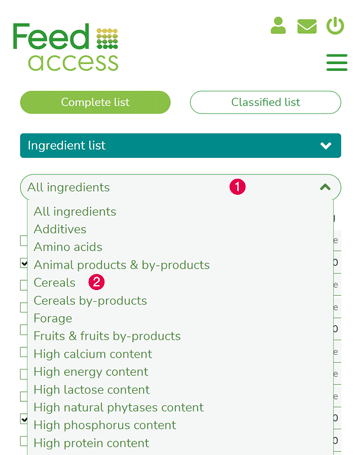
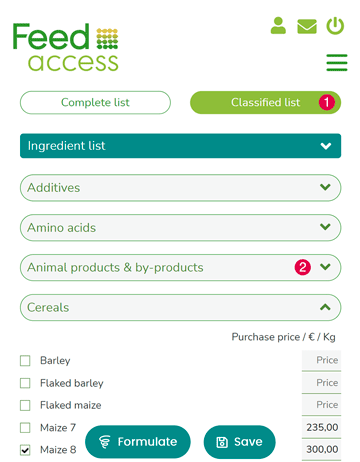
Displaying a list classified by characteristics
By clicking on the [Classified list] button (2) you access the list of ingredients, classified according to their characteristics.
By clicking on a characteristic, you scroll down the list of corresponding ingredients.
Check your ingredients and indicate the purchase price.
Further information
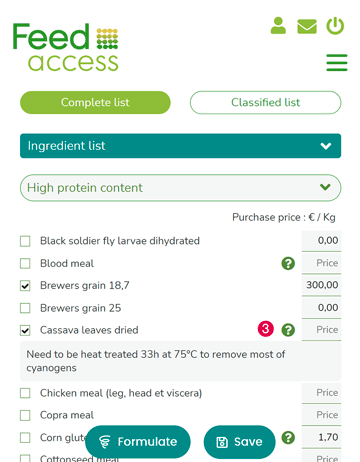
By clicking on the question marks [?] (3), you access additional information on the corresponding ingredient. This information can help you choose your ingredients and to use them better.
Registration of raw material lists
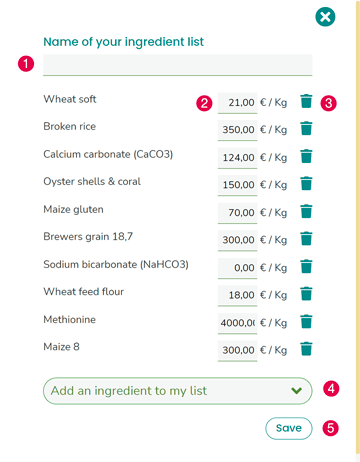
By clicking on the [save] button a window opens.
Enter a name for your ingredient list (1)
In this window, the list of checked ingredients appears with their purchase price.
For each ingredient you can change the price, or delete it, from your new ingredient list using the [Trash] icon (2)
If you want to add ingredients to this list, without returning to the “Ingredients” screen, choose them from the drop-down menu [Add an ingredient to my list](3)
To save your new list click on the [Save] button(4).
Modification of raw material lists
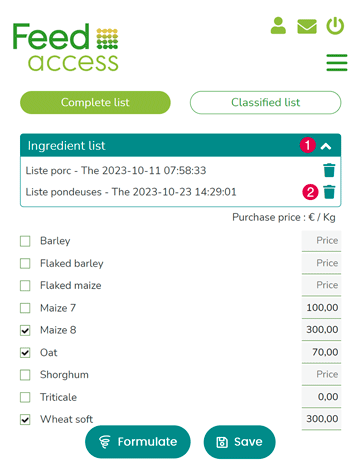
Once you have saved one or more lists, a drop-down menu(5) [My ingredient lists] appears.
By clicking on the name of your list a window opens.
In this window, you can:
- modify the name of your list,
- remove or add ingredients,
- modify the purchase price of ingredients,
- Save changes.
By clicking on the [Trash] icon you can delete each list.
Access to formulas
After checking your ingredients and indicating their purchase price, click on the [Formulate] button (6).
Advice :
Check off all the ingredients you have available, even if they seem too expensive.
The application calculates your optimal feed at the lowest price.
Sometimes, an ingredient, even a very expensive one, can bring something essential to the feed and, combined with the other ingredients, it helps to obtain a feed whose overall price will ultimately be lower.
Screen: “formulas”
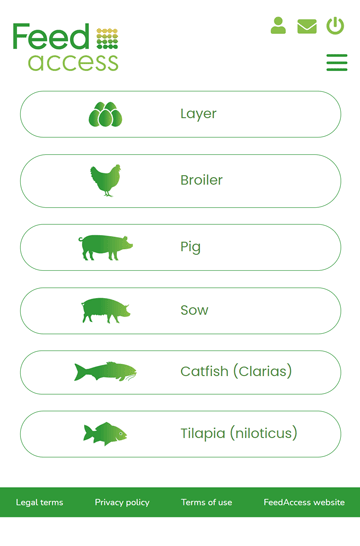
By clicking on the [Formulate] button on the “Ingredients” screen or on the [Formulas] button on the main menu, you access a screen that allows you to choose your species.
When you click on a species, the different stages of growth/production appear. Choose your stage of growth/production.
To return to the species screen, click the back arrow.
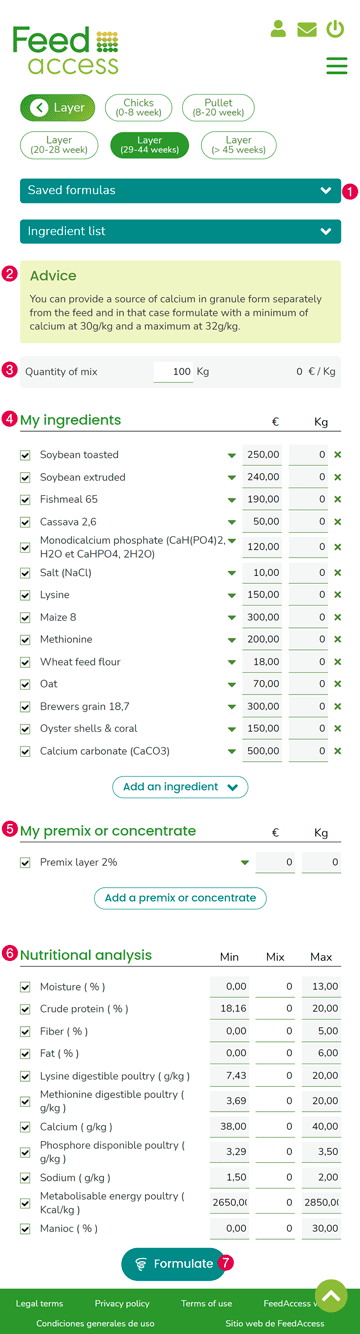
The ingredients displayed on this screen are the ones you have checked on the “Ingredients” screen.
This screen allows you to formulate a feed for the species and stage of growth/production that meets the nutritional requirements of the animal, without deficiencies or excesses, while optimizing the price of the feed (according to the ingredients you have selected).
This screen is composed of:
- 2 drop-down menus [My saved formulas] and [We ingredient lists] that match your saved data (1)
- from the block [Advice] (2)
- from the block [Quantity and price of the mixture] (3)
- from the block [My ingredients] (4)
- from the block [My premix or concentrate] (5)
- from the block [Nutritional analysis] (6)
- action buttons [Formulate] and [Save] (7)
Drop-down menu: My saved formulas
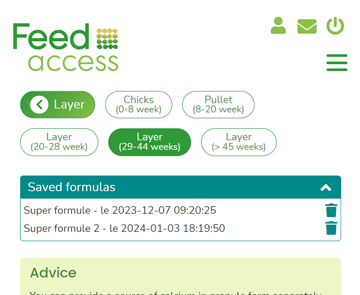
The [My saved formulas] drop-down menu only appears if you have saved at least one formula.
By clicking, you view the different formulas that you have recorded for the selected production/growth stage. In this menu, the names of your formulas and their recording dates are displayed.
Click on a formula to display it on the screen.
Delete a formula by clicking on the [Trash] icon.
Drop-down menu: My ingredient lists
The [My Ingredient Lists] drop-down menu only appears if you have saved at least one ingredient list from the “My Ingredients” screen.
Click to view the different saved lists. In this menu, the name of your lists and their recording dates are displayed. By clicking on a list, its ingredients are displayed in the “My ingredients” block.
Delete saved lists by clicking the Trash icon
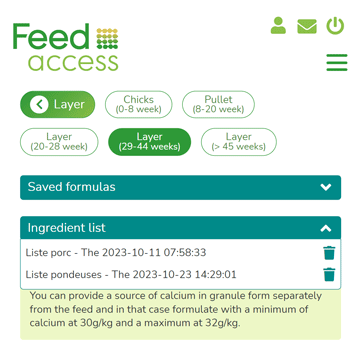
Block: Tips
Depending on the species and the production/growth stage chosen, nutritional advice may appear.
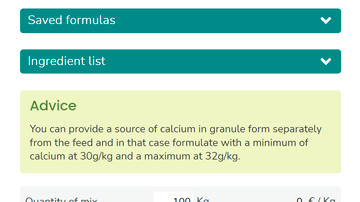
Block: Mix quantity
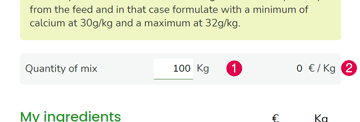
The quantity of mixturec(1) is configured by defaults at 100 kg. This allows in particular a reading of the quantities of the mixture in percentage. You can modify this value according to your needs.
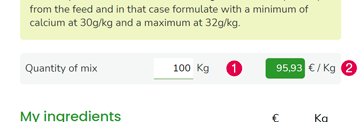
When you formulate, the price per kg of your mixture is displayed in green in the box (2)
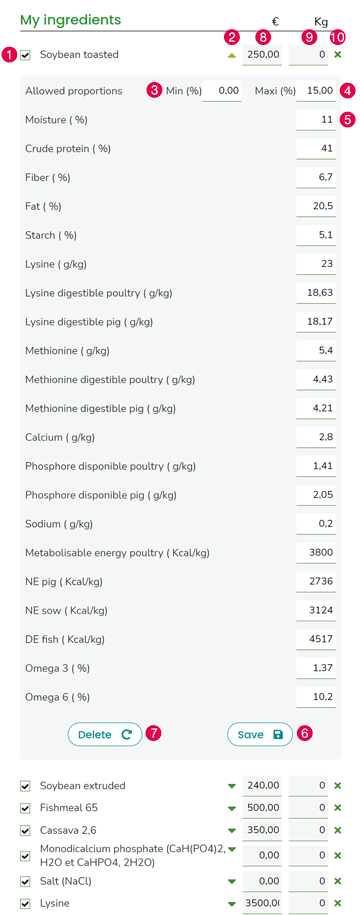
Block: My ingredients
In this block, you find the ingredients that you have checked in the “My Ingredients” screen or from the chosen list of ingredients.
For each ingredient you will find:
- a check box (1). If this box is not checked, the ingredient is not taken into account,
- a small green arrow (2) which allows you to show minimums and the maximums authorized (3) (4) in % of the ingredients in the mixture, and the nutritional values (5),
You can modify all values. - the [Save] button (6) allows you to keep the ingredient data that you have personalized,
- the [Delete] button (7) allows you to reset to defaults provided by Feed access,
- the field [price] (8) indicates the price you entered on the “Ingredients” screen or in your ingredient list. You can modify it.
Important: the modification is not saved in the price lists. - field [quantity] of each ingredient in the mixture (9),
- the button [x] (10) allows you to remove an ingredient from the list.
Examples of changes in the value of minimums and maximums.
- The stock of one of your ingredients is too large, you absolutely want to use it: increase the minimum so that the application necessarily incorporates this ingredient according to the value indicated in %.
- The availability of one of your ingredients is very low: lower the maximum so that the application limits this ingredient in the mixture.
Block: My premix or concentrate
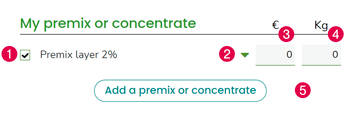
In this block, the Feed access application offers you a generic premix for which you will find:
- a check box (1). If this box is not checked, the premix is not taken into account,
- a small green arrow(2) which displays the incorporation rate and nutritional values. You cannot modify the values.
- the field [price] (3) allows you to enter the purchase price
- the field of [quantity] (4) indicates the quantity of the premix in the mixture
You can add a premix by clicking on the [Add premix or concentrate] button (5).
Window: Add a premix or concentrate
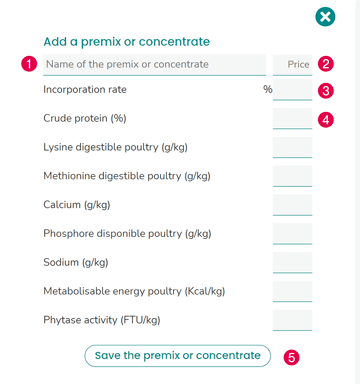
In this window enter the following information:
- the name of your premix (1),
- the purchase price (2)
- the incorporation rate in % it is indicated on the label,(3)
- the values of each nutrient indicated on the label (4).
Advice :
Check the unit of measurement indicated on the label in order to correctly configure your premix.
Do you have any doubts? Send us a photo of the label: appli@feedaccess.com
Block: Nutritional analysis
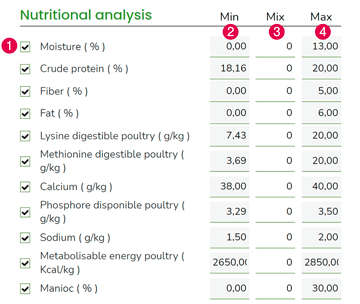
In this block, visualize the nutritional constraints for each nutrient.
- If you uncheck the box (1) of a nutrient, it is not taken into account when calculating your mixture.
- this field indicates a minimum (2) below which one should not go for the good health and growth/production of the animal.
- this field indicates a maximum (4) above which one should not go to respect the good balance of the feed and preserve the health of the animal.
- the nutritional result of your mixture is displayed in the [Mix] box (3).
You have the possibility to adapt your formula by modifying the minimums and maximums but you take the risk of getting unsuitable feed.
Action buttons [Formulate] and [Save]
To obtain your mixture click on the [Formulate] button (1)
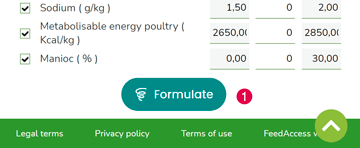
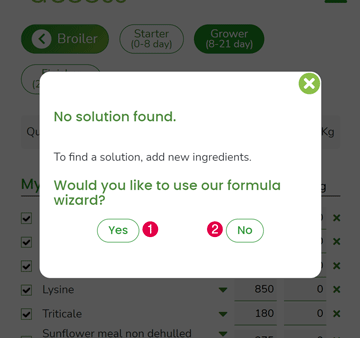
Depending on the ingredients selected, the application may not find a solution to create a suitable mixture that respects nutritional constraints.
In this case, you must add new ingredients which contain the missing nutrients.
How to find out where the problem is when no solution is available ?
- Uncheck nutrients in the nutritional analysis which are indicated in the error window and click on the [Formulate] button,
- If the application still does not find a solution, uncheck all the nutrients then re-check them, one after the other until you get the error message with no solution. This way, you will be able to identify the problematic nutrients and act accordingly.
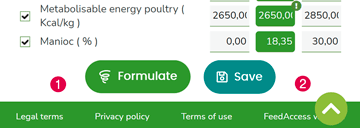
When a solution is found the [Save] button (2) is displayed. You can then save the composition of your mixture for further consultation. This saved formula is accessible in the drop-down menu [My saved formulas]
Result
The result of your formula indicates:
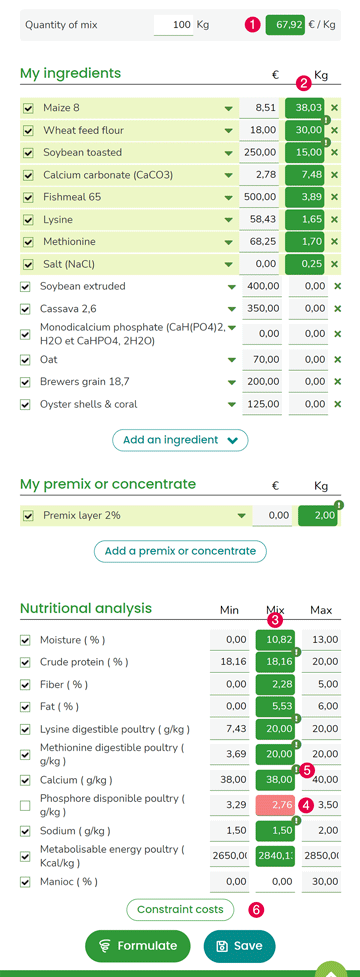
- the price per kg of your feed in the block [Mixing quantity] (1)
- the ingredients used (light green background) classified by decreasing incorporation rate
- the quantity of ingredients to use in your mixture in the [quantity] box (2)
The application calculates the nutritional value of your mixture and indicates the result in the [Mixing] box (3).
If the value of a nutrient, not taken into account in your formula, is outside the minimum and maximum allowed, the result is displayed in red.
Clicking on [ ! ] (5) nutrients or ingredients concerned, the cost of constraint corresponding appears in a window.
By clicking on the [Constraint costs] button (6) a window opens with the list of constraint costs of all the ingredients and nutrients concerned.
Cost of constraint
The constraint cost indicates the impact on the cost of feed if we change the quantity of an ingredient or nutrient by one percent.
When we formulate, we impose the minimum and the maximum to each ingredient and nutrient.
The calculation of the constraint cost is relevant when the quantity of an ingredient or nutrient reaches its minimum or maximum allowed.
Feed access calculates the constraint cost with a drop of 1% minimum values (if the value of the mixture comes down against the minimum constraint) or increase of 1% maximum values (if the value of the mixture comes up against the maximum constraint) of the ingredient or nutrient.
With this information, the user, with the appropriate technical knowledge in animal nutrition can adjust the formula and save money on feed, by acting on the minimum and maximum of certain ingredients or nutrients, in compliance with the regulations in force, focusing as a priority on the highest constraint costs in absolute value.
For example, if the user increases the minimum protein from 18.16% to 17.98% (1), Feed access indicates the constraint cost in € per kg (2), which corresponds to the savings made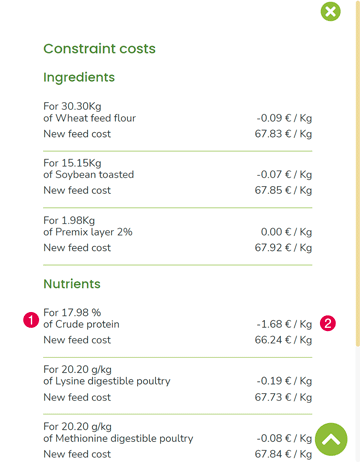
Make the appraisal of an existing formula
In the "ingredients" block, fill in the "Kg" field for each ingredient with the quantity present in your feed. In the "My premix or concentrate" block, fill in the "Kg" field with the quantity of the premix used.
The mix quantity field automatically updates as you gradually add all your quantities. The price per "Kg" is also updated using the prices of the ingredients you have indicated.
In the "Nutritional Analysis" block you can view the different nutritional values of your feed. The values in green are those that are between the minimums or maximums, the values in red are those that are either lower than the minimums or higher than the maximum.